App Builder
Overview
Section titled “Overview”The Komodo App Builder lets you create, build, and deploy containerized applications
on the Komodo platform. Your apps run at https://{app-name}.{account-slug}.apps.{env-domain}.
App Builder:
- Scaffolds application code from templates (FastAPI, Streamlit, React, multi-container)
- Builds container images via the remote Build API — no local Docker or AWS credentials required
- Deploys to the shared Komodo Data Apps environment
Prerequisites
Section titled “Prerequisites”-
Install the Marmot Development Kit — see Installation
-
Authenticate:
Terminal window uv run komodo loginTerminal window uv run komodo account setConfirm you have App Builder access on your account.
-
Set up MCP (optional) — the recommended workflow uses an AI assistant. See MCP Server Setup to connect Cursor, VS Code, or Claude Desktop
No Docker or AWS credentials are needed for the build.
Getting Started with MCP (Recommended)
Section titled “Getting Started with MCP (Recommended)”The fastest way to build and deploy an app is through an AI assistant (Cursor, VS Code Copilot, Claude Desktop) connected to the Komodo MCP server. The MCP server provides 26 tools (15 app development + 6 secrets + 5 sharing) with detailed workflow instructions that guide the assistant through the entire process.
Example Conversation
Section titled “Example Conversation”You: “Use Komodo MCP to build and deploy an application named
komodo-query-toolwith a React frontend that can run Komodo SQL queries via a backend API. The backend should use a Komodo Snowflake connection.”
The assistant will automatically:
- Call
get_available_templatesto list templates - Call
scaffold_appto generate the project — application code, Dockerfile,devfile.yaml, and README - Call
validate_devfileto verify the configuration - Call
build_appto build via the remote Build API, then register the app - Print the
app_idand every entry inservice_urls(one URL per service) - Ask whether you want to poll
get_app_statusuntil the app isRUNNINGorFAILED
Then, for example:
You: “Now list my apps”
You: “Give my FastAPI app a managed S3 bucket and buttons to write/read a test object”
The assistant scaffolds a normal app, edits devfile.yaml to enable
managedInfra.s3, adds boto3, wires the code to S3_BUCKET_NAME /
S3_BUCKET_REGION, then builds and deploys. See
Managed AWS Infrastructure.
Available MCP Tools
Section titled “Available MCP Tools”| Category | Tools | Purpose |
|---|---|---|
| Scaffolding | scaffold_app, get_available_templates, validate_devfile, generate_devfile | Create and validate app projects |
| Build & Deploy | build_app, get_build_scan_report, cancel_build | Remote image build; Trivy report; cancel build job |
| App Management | list_apps, get_app, get_app_status, get_app_logs | Monitor and inspect running apps |
| Lifecycle | enable_app, disable_app, delete_app | Start, stop, and remove apps |
| Secrets | create_secret, get_secret, list_secrets, update_secret, delete_secret, share_secret | Store and manage secrets for apps |
| Sharing | list_grantable_roles, list_app_permissions, grant_app_role, revoke_app_role, list_account_users | View and manage app access |
See the App Builder MCP Tools Reference for full details.
Templates
Section titled “Templates”App Builder provides six templates:
| Template | Language | Description |
|---|---|---|
fastapi | Python | FastAPI web API with health check and sample endpoints |
streamlit | Python | Streamlit data app with charts and sample data |
react | JavaScript | React SPA served via nginx |
multi-container | Python | Two-service setup (API + worker) with docker-compose for local dev |
react-advanced | JS + Python | React frontend with FastAPI backend |
restate-agent | Python | Standalone durable app on the platform-managed Restate runtime |
Each template generates a complete project: source code, Dockerfile, devfile.yaml,
and README.md.
Durable workflows (Restate)
Section titled “Durable workflows (Restate)”You can add Restate durable execution to a new FastAPI app by passing restate=true to scaffold_app (MCP) or the equivalent CLI flag: the tool injects metadata.komodo.restate, restate-sdk, an example workflow module, and an ASGI router so the Restate runtime can call back into your service on the paths it expects.
For what to configure in the devfile, which HTTP paths must reach the Restate handler, how in-cluster registration works, and multi-container notes, see Durable workflows (Restate).
Multi-Container Apps
Section titled “Multi-Container Apps”The multi-container and react-advanced templates create projects with multiple
services managed as a single app. One root devfile.yaml declares all services,
one .app file tracks a single app_id, and the platform orchestrates parallel
builds and ordered deployments automatically.
| Template | Services | Primary | Layout |
|---|---|---|---|
multi-container | api + worker | api | api/ and worker/ subdirectories |
react-advanced | frontend + backend | frontend | Root for frontend, backend/ subdirectory |
Project structure
Section titled “Project structure”my-app/├── devfile.yaml # Single devfile for ALL services├── .app # Single app ID (created on first deploy)├── api/│ ├── Dockerfile│ ├── main.py│ └── requirements.txt└── worker/ ├── Dockerfile ├── main.py └── requirements.txtHow builds work
Section titled “How builds work”Remote (default) — when you run build_app (MCP) or komodo build (CLI) from the project root:
- The project is packaged once (shared build context for all services)
- All service images are built in parallel via the remote Build API
- Images are registered in dependency order (from
dependsOnin the devfile) - The app is created or updated as a single entity
To rebuild a single service without touching others, pass service_name:
build_app(project_path="/path/to/my-app", service_name="backend")Or from the CLI, run komodo build from within a service subdirectory.
Service URLs and cross-service communication
Section titled “Service URLs and cross-service communication”Each service gets its own public HTTPS URL:
| Service type | URL pattern |
|---|---|
| Primary | {app-name}.{account}.apps.{env}.onkomodo.com |
| Non-primary | {app-name}-{service}.{account}.apps.{env}.onkomodo.com |
Use devfile template variables to wire services together at runtime:
{{services.<name>.url}}— full public HTTPS base (use this for all HTTP clients){{services.<name>.host}}— hostname only{{services.<name>.port}}— port number
Browser → API: Use fetch(..., { credentials: "include" }) for cookie-based
auth. The platform’s authentication layer sets a tenant-scoped cookie that covers
all sibling service hostnames. The backend must enable CORS with an explicit
CORS_ALLOWED_ORIGINS (not * when credentials are used).
Container → container: Use the same public URL (e.g., worker calls API at
{{services.api.url}}). If the callee enforces auth, include the appropriate
headers (for example an Authorization token).
Devfile environment variables
Section titled “Devfile environment variables”Service URLs must be passed as container.env, not dockerfile.args (build
args are not resolved for service URL templates).
- name: backend container: env: - name: CORS_ALLOWED_ORIGINS value: "{{services.frontend.url}}"- name: frontend container: env: - name: BACKEND_PUBLIC_URL value: "{{services.backend.url}}"Service naming constraints
Section titled “Service naming constraints”Container component names become part of DNS hostnames and Helm release names.
Keep them under 12 characters, lowercase alphanumeric with hyphens. Examples:
api, worker, frontend, backend. Names like authentication-service may
cause Helm release-name overflow.
Devfile Configuration
Section titled “Devfile Configuration”Every app requires a devfile.yaml that defines its metadata and container
configuration.
Single-service devfile
Section titled “Single-service devfile”schemaVersion: 2.2.0metadata: name: my-api displayName: My API Service description: A FastAPI service for inventory management komodo: fabrics: [] permissions: []components: - name: api container: image: my-api:latest endpoints: - name: http targetPort: 8000Multi-service devfile
Section titled “Multi-service devfile”schemaVersion: 2.2.0metadata: name: my-app displayName: My Full-Stack App description: React frontend with FastAPI backend komodo: fabrics: [] permissions: [] primaryService: frontendcomponents: - name: frontend-build image: imageName: my-app-frontend:latest dockerfile: uri: Dockerfile buildContext: . - name: backend-build image: imageName: my-app-backend:latest dockerfile: uri: backend/Dockerfile buildContext: . - name: frontend container: image: my-app-frontend:latest memoryLimit: 512Mi cpuLimit: 500m endpoints: - name: http targetPort: 80 env: - name: BACKEND_PUBLIC_URL value: "{{services.backend.url}}" dependsOn: - backend - name: backend container: image: my-app-backend:latest memoryLimit: 512Mi cpuLimit: 500m endpoints: - name: http targetPort: 8000 env: - name: CORS_ALLOWED_ORIGINS value: "{{services.frontend.url}}"Key fields:
metadata.name— becomes the app’s subdomain (must be lowercase, alphanumeric + hyphens, 1-63 chars)metadata.komodo.primaryService— the user-facing entrypoint service (multi-service only)components[].container.endpoints[].targetPort— must match the port your app listens oncomponents[].container.dependsOn— deploy ordering; dependencies are registered firstcomponents[].image— one per service; references the service’s Dockerfile
The .app File
Section titled “The .app File”When an app is created, a .app file is written to the project directory containing
the app’s UUID. Subsequent builds update the existing app rather than creating a new
one. Commit this file to version control so team members deploy to the same app.
If you delete an app but the .app file remains, the next build will fail with a 404.
Delete the .app file and rebuild to create a new app.
Managed AWS Infrastructure
Section titled “Managed AWS Infrastructure”App Builder can provision platform-managed AWS resources for your app — an app-scoped S3 bucket, DynamoDB table, SQS queue, Postgres database, Redis cache, or MemoryDB cluster — without you creating IAM roles, Terraform, or AWS keys.
Declare what you need under metadata.komodo.managedInfra in devfile.yaml.
On deploy, the platform:
- Provisions the resource (via Crossplane / GitOps)
- Attaches a per-app IRSA role scoped to that resource
- Injects connection details as environment variables into your containers
Your app code reads those env vars and uses the default AWS credential chain (for S3 / DynamoDB / SQS) or the published database credentials (for Postgres / Redis / MemoryDB). You never put AWS access keys in the app.
Enable managed infra in the devfile
Section titled “Enable managed infra in the devfile”Add a managedInfra block under metadata.komodo. Enable only the primitives
you need:
metadata: name: my-app displayName: My App komodo: fabrics: [] permissions: [] managedInfra: s3: enabled: true versioning: false dynamodb: enabled: true partitionKey: name: pk type: S sqs: enabled: true deadLetterQueue: true postgres: enabled: true instanceClass: db.t3.micro redis: enabled: true memorydb: enabled: trueThere is no special scaffold template and no scaffold_app flag for managed
infra. Scaffold a normal app (for example fastapi), then edit the generated
devfile.yaml as above before building.
Injected environment variables
Section titled “Injected environment variables”| Primitive | When ready | Env vars |
|---|---|---|
| s3 | With app rollout | S3_BUCKET_NAME, S3_BUCKET_REGION |
| dynamodb | With app rollout | DYNAMODB_TABLE_NAME, DYNAMODB_TABLE_ARN, DYNAMODB_REGION |
| sqs | With app rollout | SQS_QUEUE_URL, SQS_QUEUE_ARN, SQS_QUEUE_NAME (+ SQS_DLQ_URL / SQS_DLQ_ARN when DLQ enabled) |
| postgres | Async (may take several minutes) | DB_HOST, DB_PORT, DB_USER, DB_PASSWORD, DB_NAME |
| redis | Async | REDIS_HOST, REDIS_PORT |
| memorydb | Async | MEMORYDB_HOST, MEMORYDB_PORT |
S3, DynamoDB, and SQS use IRSA — add boto3 to your app and call the AWS
APIs with the default credential chain (no keys in code). Postgres, Redis, and
MemoryDB credentials are published asynchronously after the claim is ready; make
startup resilient (retry/backoff) so the first rollout does not crash-loop if
those env vars are not present yet.
Example (Python / S3):
import osimport boto3
s3 = boto3.client("s3", region_name=os.environ["S3_BUCKET_REGION"])bucket = os.environ["S3_BUCKET_NAME"]s3.put_object(Bucket=bucket, Key="demo/data.json", Body=b'{"ok": true}')
Multi-container apps
Section titled “Multi-container apps”Managed infra is app-scoped: one set of resources and one IRSA role per app. The chart injects the env vars into every service container. Add client libraries only to the services that need them.
Removing managed infra
Section titled “Removing managed infra”Delete a primitive (or set enabled: false) and re-deploy to tear it down.
Managed databases are stateful — removing postgres, redis, or memorydb
destroys the data.
Building & Deploying via CLI
Section titled “Building & Deploying via CLI”For users who prefer direct CLI control over MCP. See the App Builder CLI Reference for the complete command reference.
Build and Deploy
Section titled “Build and Deploy”uv run komodo buildDiscovers services, uploads context to the remote Build API, streams build logs, then creates/updates the app. Only Komodo OAuth is needed.
Check Build Status
Section titled “Check Build Status”uv run komodo build status <BUILD_ID>Use --poll to automatically poll every 10 seconds until the build completes.
App Management
Section titled “App Management”uv run komodo app listuv run komodo app get-status <APP_ID>uv run komodo app display-latest-logs <APP_ID>uv run komodo app delete <APP_ID>Managing Your Apps in Home
Section titled “Managing Your Apps in Home”Home is the web UI where you can discover, open, and manage your deployed applications.
Navigating to Your Apps
Section titled “Navigating to Your Apps”In the sidebar, use the Apps entry (grid icon) to open the apps list. The main navigation includes Home, Apps, and Explore; the Apps page shows “My Apps” and a searchable grid of your applications.

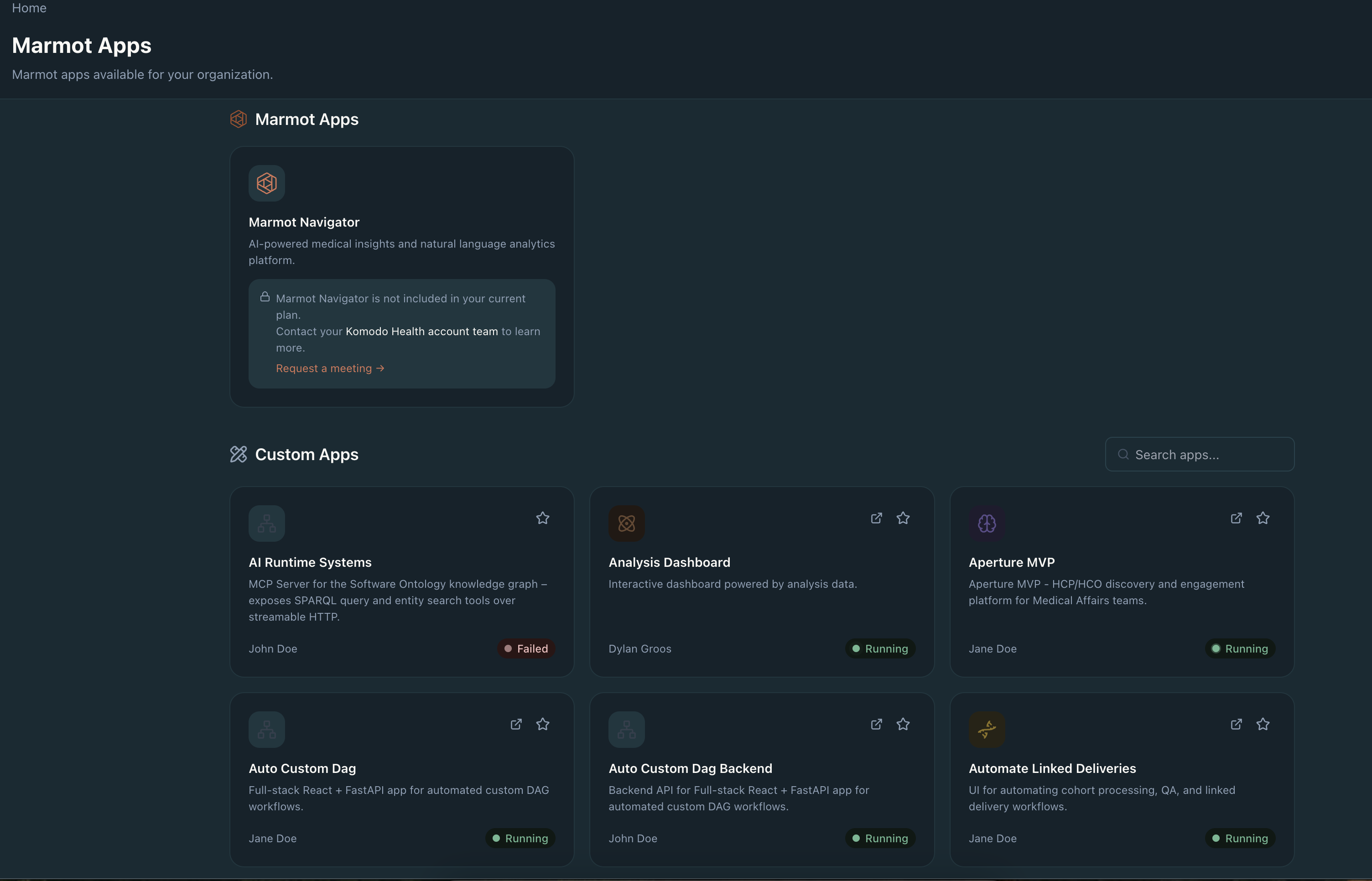
Apps List
Section titled “Apps List”The apps list displays every deployed app as a card with:
- Name and description — from your app’s devfile metadata
- Status — Running, In Progress, or other deployment state
- Owner — the user who created or owns the app
A Create New App card at the top links to the flow for building a new app. Use the search bar to filter apps by name or description.
App Details
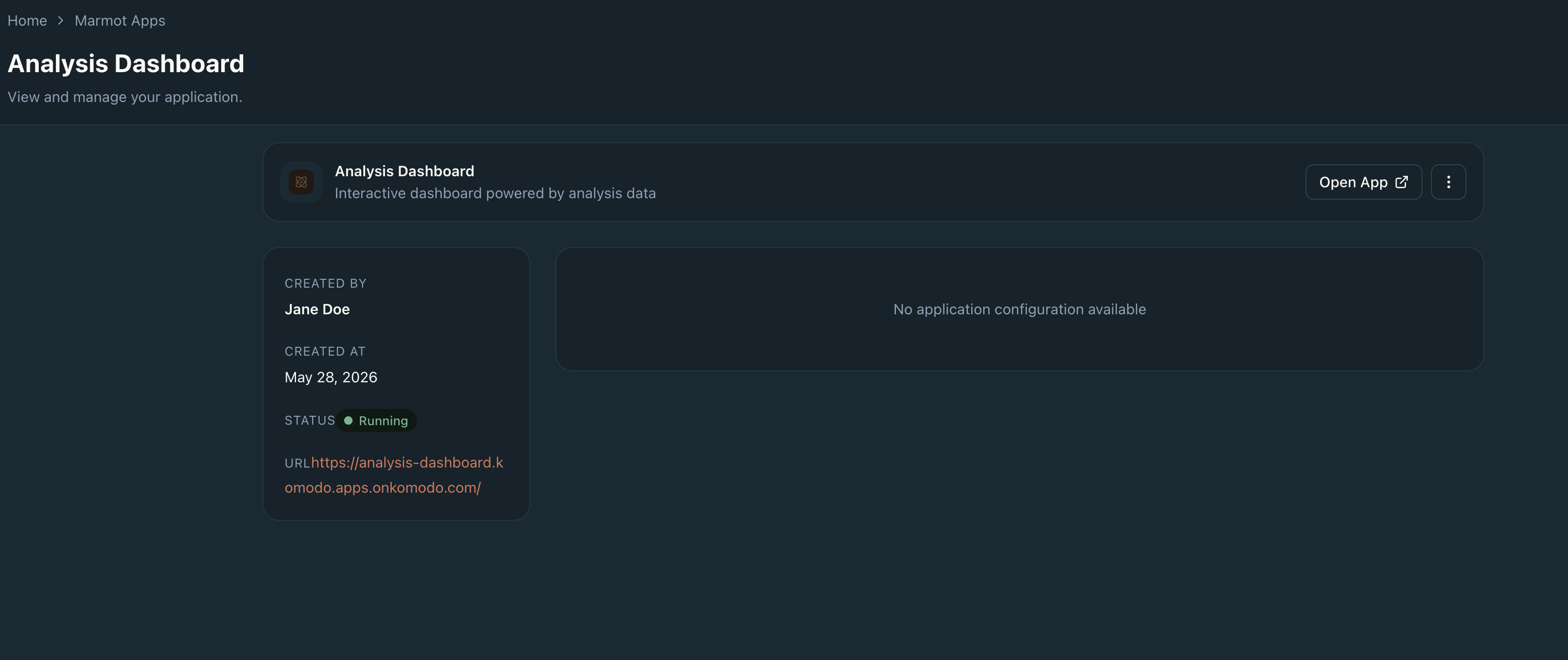
Section titled “App Details”Select an app to open its App Details page. Here you can:
- Open the app — use “Open App” to open the live URL in a new tab
- View status and URL — see current status (e.g. Running) and the full app URL
- Inspect devfile contents — version, language, Komodo configuration (fabrics, RBAC permissions), and a summary of components
- See components — for each component, view image URI (ECR), resource limits (memory, CPU), and endpoints (e.g. HTTP port)
Sharing & Permissions
Section titled “Sharing & Permissions”Every app is backed by a Platform RBAC custom resource, and the app UUID doubles as the custom resource ID. You can grant other users access to your apps with one of three roles:
| Role | Can view | Can edit | Can manage access |
|---|---|---|---|
| viewer | Yes | — | — |
| editor | Yes | Yes | — |
| owner | Yes | Yes | Yes |
The roles you can grant depend on your own role. An owner can grant all three;
an editor can grant editor and viewer.
Sharing via MCP
Section titled “Sharing via MCP”Ask your AI assistant:
“Who has access to my app?”
The assistant calls list_app_permissions and shows a table of users and roles.
“Grant editor access to alice@komodohealth.com on my app”
The assistant resolves the app, confirms the role, and calls grant_app_role.
“Revoke viewer from bob@komodohealth.com”
The assistant calls revoke_app_role. If details are missing, it prompts you
interactively.
See the App Builder MCP Tools Reference — Sharing for the full parameter reference.
Sharing via CLI
Section titled “Sharing via CLI”The komodo app sharing command group provides list, roles, grant, and
revoke subcommands. All support an interactive flow when flags are omitted.
List users with access:
uv run komodo app sharing list <APP_ID>Show roles you can grant:
uv run komodo app sharing roles <APP_ID>Grant a role (interactive when flags are omitted):
uv run komodo app sharing grant --app-id <APP_ID> --role editor --user alice@komodohealth.comRevoke a role:
uv run komodo app sharing revoke --app-id <APP_ID> --role viewer --user <USER_ID>See the App Builder CLI Reference — komodo app sharing for the full flag reference.
Secrets
Section titled “Secrets”Komodo Secrets lets you store sensitive values (API keys, database passwords, tokens) and inject them into your deployed applications as environment variables. Secret values are stored server-side in the Komodo Secrets Service (backed by a hardened secrets vault) and delivered to your app at runtime — the values never appear in your source code, container image, or devfile (only secret path references do).
Secret scopes
Section titled “Secret scopes”| Scope | Description | Use case |
|---|---|---|
| user | Private to you | Personal API keys, tokens |
| app | Tied to a specific application (requires app_id) | Database credentials for one app |
| shared | Visible to all members of your account | Team-wide service keys |
Devfile syntax
Section titled “Devfile syntax”Add a secrets list to any container component. Each entry maps a secret path to
an environment variable name:
components: - name: my-api container: image: my-api:latest endpoints: - name: http targetPort: 8000 secrets: - name: DB_PASSWORD secretPath: db/password - name: STRIPE_KEY secretPath: stripe-api-key| Field | Description |
|---|---|
name | The environment variable name injected into the container |
secretPath | Path of the secret in the Komodo Secrets Service (as used with create_secret) |
At runtime your application reads the value with os.environ["DB_PASSWORD"] (or
your language’s equivalent).
Managing secrets via MCP
Section titled “Managing secrets via MCP”You: “Create an app secret called
db-passwordwith the values3cret123for my app”
The assistant calls create_secret with secret_type: "app", secret_path: "db-password",
and data: '{"value": "s3cret123"}'.
You: “List all my secrets”
The assistant calls list_secrets with secret_type: "user" to show your personal secrets.
You: “Share my secret
api-keywith the team”
The assistant calls share_secret to copy your user secret into the shared namespace
where all account members can access it.
See the App Builder MCP Tools Reference — Secrets for the full parameter reference.
Managing secrets via CLI
Section titled “Managing secrets via CLI”uv run komodo secrets create --type user --path my-api-key --data '{"key": "abc123"}'uv run komodo secrets list --type useruv run komodo secrets get --type user --path my-api-keyuv run komodo secrets update --type app --path db-password --app-id APP_ID --data '{"password": "new-pass"}'uv run komodo secrets delete --type user --path my-api-keySee the App Builder CLI Reference — komodo secrets for the full flag reference.
Managing secrets via SDK
Section titled “Managing secrets via SDK”from komodo_internal_tools.sdk.secrets_api import SecretsApi, SecretType
api = SecretsApi(environment="production")
# Create a user secretapi.create_secret( secret_type=SecretType.USER, secret_path="my-api-key", data={"key": "abc123"},)
# Read it backsecret = api.read_secret(SecretType.USER, "my-api-key")print(secret.data) # {"key": "abc123"}See the Python SDK — SecretsApi for the full class reference.
Troubleshooting
Section titled “Troubleshooting”Authentication Errors
Section titled “Authentication Errors”Run komodo login and komodo account set to complete the browser-based OAuth
flow and select your account.
Port Mismatch
Section titled “Port Mismatch”If your app deploys but returns errors, verify targetPort in devfile.yaml
matches the port your application actually listens on. Use validate_devfile
(MCP) or review the devfile manually.
App Not Found (404)
Section titled “App Not Found (404)”If build_app fails with a 404, the app was deleted but the .app file remains.
Delete the .app file and rebuild.
Build Failures
Section titled “Build Failures”If a remote build fails, check the error message in the build_app response.
Common causes:
- Invalid Dockerfile — ensure your Dockerfile builds successfully locally
with
docker build .before deploying - Scan failures — the platform runs Trivy vulnerability scans; critical
vulnerabilities may block the build. Use
get_build_scan_report(MCP) orkomodo build status <BUILD_ID>(CLI) to see details - Timeout — large builds may exceed the default timeout; try reducing image size or contact Komodo support
Multi-Container Issues
Section titled “Multi-Container Issues”- CORS errors or 302 redirects — the backend’s
CORS_ALLOWED_ORIGINSmust exactly match the frontend’s origin (no trailing slash). Use{{services.frontend.url}}viacontainer.env, notdockerfile.args - Preflight surprises — avoid sending
Content-Type: application/jsononGETrequests unless you need it, since it can trigger anOPTIONSpreflight that fails when CORS is misconfigured - Backend sees no traffic — if
BACKEND_PUBLIC_URLis empty, frontend calls to relative/api/*hit the primary app host and may 302 to login while your backend receives nothing. Ensure{{services.backend.url}}is injected viacontainer.env - Service unreachable — verify you’re calling the public
{{services.<name>.url}}, not an internal hostname orlocalhost - ImagePullBackOff — run a full
build_appfrom the project root (withoutservice_name) to re-sync all image URIs in the devfile - One service FAILED — use
get_app_logswithservice_nameto check logs for that specific service